Gothic 1 Remake How to Turn VSync On and Potentially Fix Stuttering

The Gothic 1 Remake is finally here, bringing a cult classic to modern platforms in a fully remade version, using Unreal Engine 5. However, for those playing on PC, you might be experiencing quite a bit of screen tearing.
Normally, this could be resolved by simply turning on VSync in a game’s settings; however, it’s oddly grayed out in Gothic 1 Remake.

Well, the good news is that there’s a fix, and it’s all because of one specific setting.
Gothic 1 Remake How to Turn VSync On
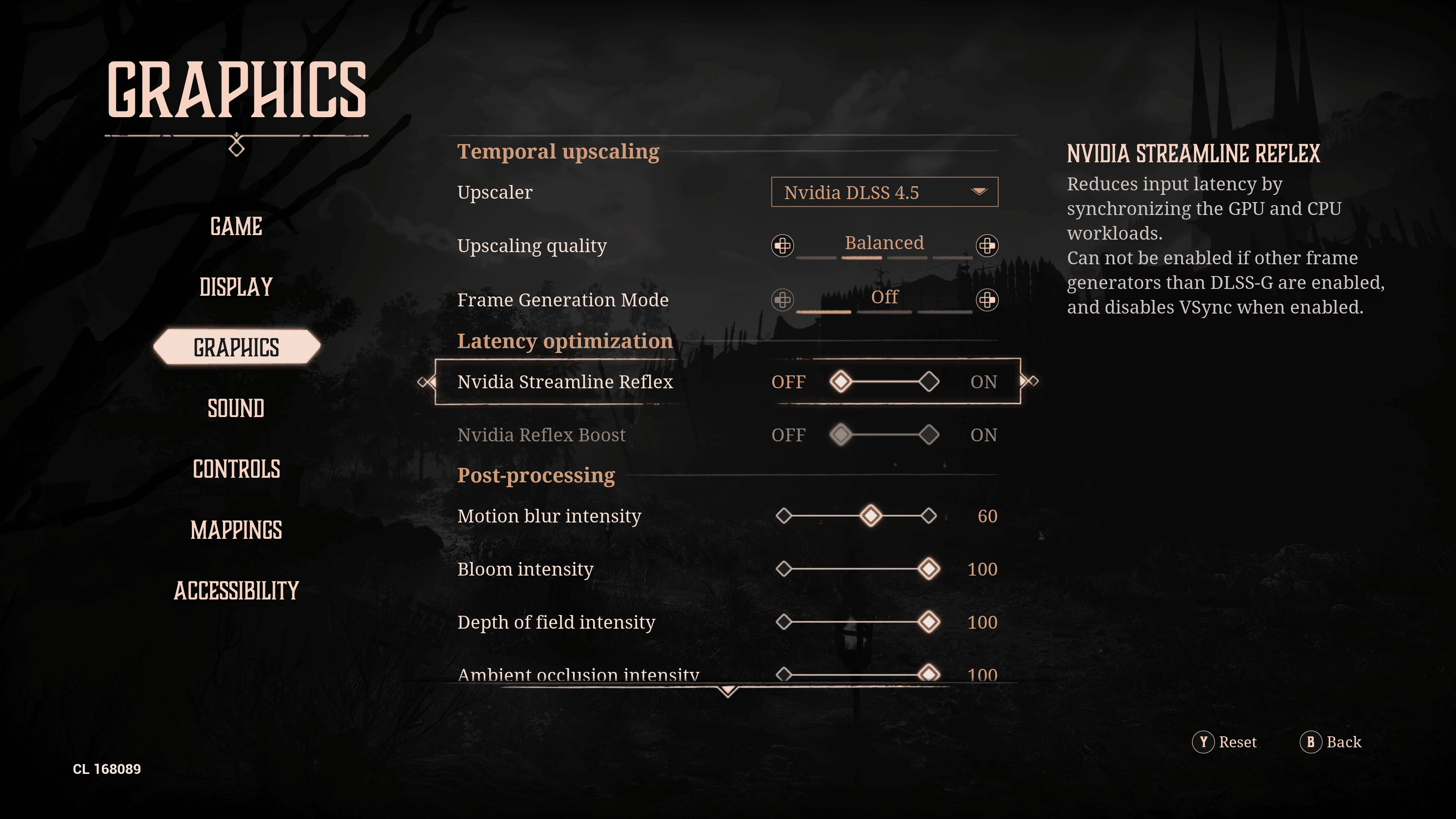
To enable V-sync in Gothic 1 Remake, navigate to the graphics tab, then under “Latency optimization,” toggle “Nvidia Streamline Reflex” off. Once you’ve done this, you can go back to the Display settings, and you’ll notice that VSync is no longer grayed out.
Yep, it was that easy! Normally, the option is grayed out in PC games when frame generation is enabled, but in this case, it’s due to one of the other default graphical options.

If you’ve noticed any major screen tearing, this should fix it, as VSync synchronizes the game’s performance to your display. Additionally, those who were experiencing stuttering may also fix that. For me, I noticed a ton of stuttering in the opening cinematic, and turning Nvidia Streamline Reflex off seems to have fixed that completely.
Now, given that this is an Unreal Engine 5 game, changing this setting probably isn’t going to fix all of the performance woes you have with the game. It will definitely help, but still expect some hitches here and there, as such is the case with most Unreal Engine 5 games.
Well, that’s how you turn VSync on in Gothic 1 Remake. Not so complicated, right?
Gothic 1 Remake is now available worldwide on the PlayStation 5, Xbox Series X|S, and PC.

This website contains affiliate links. If you click a link and make a purchase, we may earn a commission at no additional cost to you. This helps support our work. Learn more on our affiliate page.