

Monster Hunter Wilds Gameplay Settings You Need to Change

[summaraize]
If you’re new to the Monster Hunter franchise, chances are, you’re confused a bit in how everything works in Monster Hunter Wilds given there’s a ton to understand before you get the hang of the game. While getting to understand monster patterns, which weapons to use all take time, we’re here to help you adjust some of the in-game settings the best way possible.
Whether you’re starting out or already playing, read on to learn about some of the Monster Hunter Wilds gameplay settings you’ll want to change ASAP.
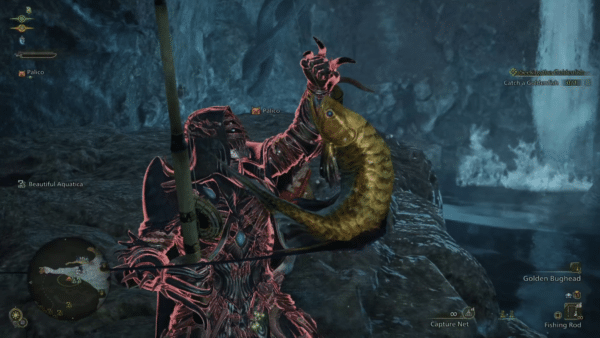
Monster Hunter Wilds Gameplay Settings for the Best Experience

Tweak Camera Distance View – Go to settings, and change this from 1 to what value you’ll be comfortable with to see any incoming enemies (max is at 10). Given how the game has multiple rampaging beasts attacking you at once often, it’s best to be able to see them easily, and having everything zoomed in too much will prevent you from seeing attacks from other angles.
Turn Off Motion Blur – This is something that you should be doing in almost all games. Turn off the motion blur since it contributes nothing to the experience other than maybe making things appear more cinematic? But at the expense of eye strain or motion sickness? Yeah, turn this off immediately.
Change Your Mini-Map Settings to “Fixed”– In Monster Hunter Wilds, your map “rotates” with your character. The main problem here is, it sometimes gets a little disorienting when trying to go to a specific area. Change it to fixed, so it stays put and makes it easier to navigate.
Bonus Tip: Don’t forget to use the Fast Travel optionin your map to save time. You can fast travel to camps you’ve unlocked.
Bonus Tip #2: Don’t forget to use your map filter on the bottom left. You can even switch it to the item you’re trying to find to craft items.
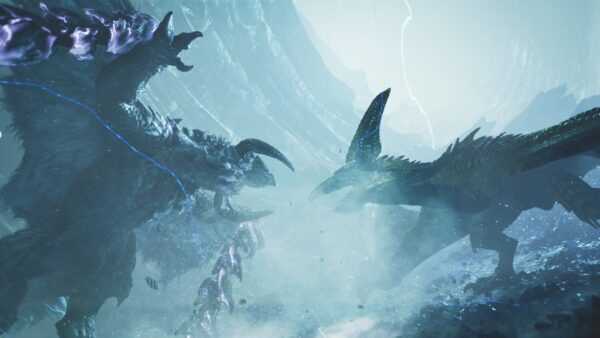
Seikret Auto-Explore Off – While the Seikret’s auto-drive feature is a nice feature that you can use to auto navigate the game’s expansive levels, turn the Auto-Explore to off so your Seikret doesn’t roam on their own if you don’t want them to. This is a minor one, but it helps.
Turn Focus Mode to “Toggle”– This is more on preference, but if your fingers get tense or tired from pressing L2 to Focus, turn it to toggle, so you can just hit it once, and it’ll be in Focus mode until you hit it again. Saves some wear and tear on your controller’s spring and your fingers.
Disable Auto-Sheate – This one is something franchise fans are familiar with, but it bears repeating nonetheless. Disable auto-sheate for weapons, as the game has this nasty habit of sometimes sheating your weapon when you need to actually use it to hit a monster. This will lead to missed combos, missed opportunities to land a major attack when a monster is whiffs a major move and so on.
That’s it for some of the best gameplay settings you can toggle in Monster Hunter Wilds! Got a tip or a setting that’s important? Leave a comment and let us know.
Remember to check out our interview with Capcom regarding Monster Hunter Wilds to learn more about the game’s development.
This website contains affiliate links. If you click a link and make a purchase, we may earn a commission at no additional cost to you. This helps support our work. Learn more on our affiliate page.



The only settings i’ve changed are at the quest counter for automatic SoS flare and 4 support hunter companions. Because i perfer the 1p experience and with automatic SoS flare it automatically spawns the max number of support hunters for each hunt.