Ninja Gaiden 4 How to Adjust DLSS Setting

Ninja Gaiden 4 is officially out, and while it comes with upscaler support on PC for both FSR and DLSS, it seems that the latter is “broken.” While you can adjust different modes (performance, balance, and quality) with FSR, it looks as if DLSS only allows you to turn it on and off, with no control over the upscaling it does in-game.
Don’t worry, there’s nothing wrong with your system, as this was more of an oversight on the studio’s part. Luckily, there is a way around this.
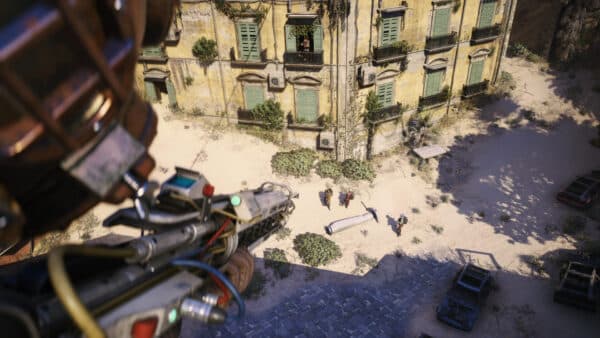
How to Change DLSS Modes in Ninja Gaiden 4

Despite Ninja Gaiden 4 supporting Nvidia’s DLSS, it appears there are no options for adjusting its modes beyond turning it on and off. A rather odd omission on the studio’s part, with a developer even commenting on Steam that there’s currently no way to adjust it in-game.
“Hi there — thanks for checking out Ninja Gaiden 4!
At this time, DLSS options aren’t adjustable directly from the in-game graphics menu. To tweak DLSS modes (e.g., Performance / Quality), please open the NVIDIA App / GeForce Experience and adjust the DLSS settings there.”
Despite recommending players to adjust the DLSS modes via the Nvidia App, many are still encountering issues, with some not even being able to change those settings through it. I do recommend you try first, make sure you add the game to the list, and force DLSS, especially if it’s disabled in-game with no way of changing it. Adding it to the Nvidia app and then selecting a mode will fix that option, too.
If that doesn’t work, there’s an easy fix: edit the game’s config settings. Here’s how:
- Open Steam, right-click on Ninja Gaiden 4, select “Manage,” and then browse local files, which will open the installation folder.
- Open the “Config” folder, then open the “settings.ini” file with Notepad.
- Here you’ll see some text, with one line saying “DLSSSaclingFactor = -1.0”
- Adjust the number at the end for whatever DLSS mode you want, which are:
-
1.3 for Ultra Quality
-
1.5 for Quality
-
1.7 for Balanced
-
2.0 for Performance.
-
- Save the file, and you should now have DLSS enabled with your preferred mode once you launch the game.
It’s not the most ideal way of doing it, especially since you have to close out the game each time you want to switch modes.
If I am being honest, the game is generally pretty optimized, and I found that I’m able to get smooth performance without any upscalers enabled. Still, not everyone’s system is the same, so if you’re experiencing performance hiccups and have a DLSS-supported card, try this out; hopefully, it will give you better frames.
Ninja Gaiden 4 is now available on PS5, Xbox Series X|S, and PC.
This website contains affiliate links. If you click a link and make a purchase, we may earn a commission at no additional cost to you. This helps support our work. Learn more on our affiliate page.