Battlefield 6 Best Settings for Consoles, PC and Controllers
It’s finally upon us! Battlefield 6 is now live and ready to dominate your multiplayer gaming life for the foreseeable future. If you’re looking to maximize efficiency and the game’s visuals, we have you covered.
MP1st’s Battlefield 6 best settings guide covers controller settings, graphics settings, and more.
Whether you’re a console or PC gamer, this guide will help you in your objective, soldier.
Battlefield 6 Best Console Settings
Best Gameplay Settings
Global
- Invert All vertical Look – If you want to play with the controls inverted for all vertical actions, you can enable it here. Personally, because most games have invert off, you’re probably going to want to keep it by default.
- I do recommend modifying the Vertical Look Settings and switching aircraft to Invert, as most games with planes and such do play with this inverted. To me, that feels far more natural.
- Hold/Toggle Options
- Infantry Sprint – Toggle – I prefer having this as toggle, rather than hold, since you are going to stop running anyway when you ADS.
- Double Tap Forward Sprint – Off
- Infantry Weapon Zoom – Hold
- Vehicle Weapon Zoom – Hold
- Steady Scope – Hold
- Interact and Reload – Prioritize Reload
- Request Respawn – I would opt for a toggle since it’s faster than holding.
- Skip revive – Hold, that way you can cancel it in case someone comes up to revive you.
- Vehicle Boost – Toggle
- CommoRose – Hold
- Capture Area Outline – On lets you see an outline of an area that can be captured. Turning this off removes that, which isn’t good for objective-based modes.
Infantry
- Infantry Aim Sensitivity – Adjust how you want, though anything below 30 is going to feel extremely slow, where higher sensitivity will feel more responsive and snappier.
- Infantry Mouse Aim Sensitivity – Adjust with where it feels right for you.
- Crouch Toggle Sprint – Stand
- Vault Over Sprint – On
- Sprint Door Barge – On
- Double Tap Crouch for Sprint Slide – Depends on whether you want to double-tap to sprint slide or single-press.
- Landing Roll – On
- Mount Breakout – Instant
- Interact and Reload – Prioritize Reload
- Invert Demolition Charge – Off if you don’t like inverted controls, on if you do.
- Inventory Visibility – Show so you can see how much you have of something.
Vehicles
As with any aim sensitivity, adjust to what feels right for you. I prefer snappier, more responsive sensitivity, so I tend to keep my numbers either half (50) or higher on all these options.
- Helicopter Control Assists – If you are like me and suck at flying these, then having control assist enabled probably isn’t a bad idea. The Helicopter will automatically hover when no input is applied.
- Vehicle Aim-Relative Controls – Off, because having the vehicles move based on where the camera is aiming can be very annoying.
- Decouple Tank Turret Aiming From Turning – Off
- Decouple Aiming From Turning – Off
- Vehicle Boost – Toggle
Aim Assist
There is controller aim assist, but don’t worry, it’s not super overpowered like it is, say in Call of Duty. Still, because it exists, I recommend taking advantage of any options that are available.
- Infantry Aim Assist – Max on the slider.
- Infantry Aim Assist Slowdown – Max on the slider
- Infantry Aim Assist Zoom Snap – If you need assistance while zooming, keep this at 100 (max). If not, and you want full control over aim movement while zoomed, then dial this down to 0, or at least below 50.
- Vehicle Aim Assist – Max on the slider.
- Vehicle Aim Assist Slowdown – Max on the slider
- Vehicle Aim Assist Zoom Snap – If you need assistance while zooming, keep this at 100 (max). If not, and you want full control over aim movement while zoomed, then dial this down to 0, or at least below 50.
Best Controller Settings

Edit Button Mapping
First thing to do is go to the Controller tab, click on “Edit Presets” and continue to “Edit Button Mapping.” You’ll want to move the R1 (grenade) to L1, and vice versa. This means that R1 will now be your “Spot” button and Commorose, which is something you’ll use more often than a grenade. You’ll also find it easier to spot for your entire team, since you can now press spot while keeping your ADS (aim down sight).
Controller > Edit Settings (you’ll see the controller image, then press triangle on PS5, Y on Xbox).
Next, go to your Controller, and “Edit Settings, which is the button below the Edit Presets.
Infantry Control Settings
Infantry Aim Sensitivity – You’ll want to increase this from the base value (which is 20), to something much higher. I’m personally using 40-55, but if you’re used to twitchy, faster-paced shooters, you might want to have this at 60 or even more. Test it out in the Firing Range to know what Aim Sensitivity suits you best.
- Field of View (FOV) – I move it to 90 or 100, and some want it even higher, but I find 100 to be the sweet spot.
- Uniform Infantry Aiming – On
- Zero Sensitivity Coefficient – 178 (Keep as default or you can increase it a bit especially if you snipe).
- Infantry Aim Assist – 100 (Default)
- Infantry Aim Assist Slowdown – 100 (Default)
- Infantry Aim Assist Zoom Snap – Lower to 50 or even lower if you want your aim assist to snap more to an enemy.
- Soldier Aim Input Curve – Standard
- Soldier Zoom Aim Input Curve – Standard
- Stick Input Acceleration Presets – Standard
- Aiming Left/Right Acceleration – 30
Movement
For the most part, you want to keep this to default. If you prefer to toggle your sprint or feel like you want more control on your sliding, feel free to change these. The default setting for the movement works best and doesn’t need to be changed, especially if you’re coming from other first-person shooters.
Zoom
- Infantry Weapon Zoom – Hold (If you use Toggle on this, what’s wrong with you?)
- Zoom – L2
- Steady Scope – L3
- Vertical Aim Ratio – 56.3
- Vertical Zoom Ratio – 56.3
Other
Controlling Tuning
Controller Vibration – Off (Your preference, but having it off is less distracting)
Controller Left Stick
- Center Deadzone – 2 (if you can set it to zero with no stick drift, then do so. You want to keep this as low as possible).
- Axial Deadzone – 8
- Max Input Threshold – 80
Controller Right Stick
- Center Deadzone – 2 (if you can set it to zero with no stick drift, then do so. You want to keep this as low as possible).
- Axial Deadzone – 8
- Max Input Threshold – 100
Mouse and Keyboard Settings

Adjust as needed, but be sure to go under Advanced Settings and ensure that “Mouse Raw Input” is set to “On.” This is going to give you the full input from your mouse, so that you are 100% in control of it while aiming and such.
Base Graphics Settings (across all platforms)
- Brightness – Adjust this to your preferred level and according to your own setup, as everyone will be different.
- Sharpness – We kept this at default.
- Field of View – We recommend a field of view between 90 and 110 degrees. Anything more than that and your view begins to distort, and anything lower and you’re limiting your own view.
- Vehicle 3rd Person Field of View – Since it’s a third-person view and doesn’t have a gun in the middle of the screen, we recommend cranking this all the way up so you can see everything around you while in a vehicle.
- Weapon Field of View – Wide – This will make the weapon on screen smaller when not zoomed in, thus giving you more viewable space while playing.
- World Motion Blur – 0, the game runs at a rock-solid 60fps, and in my opinion, motion blur is not needed to hide performance issues. That, and you don’t want to limit your visibility by blurring it.
- Weapon Motion Blur – 0, and the same reason as World Motion Blur.
- Camera Shake Amount – Slide this all the way down. You want to make sure that the camera is as stable and nondistracting as possible.
- Chromatic Aberration – Off, unless you like color fringing where outlines of red, blue, and green appear around objects. This is honestly distracting and hurts visibility.
- Vignette – Off, you don’t need the edge of the screen to darken; that’s a loss in visibility, which you are not trying to have.
- Film Grain – Off. I will say that if you are playing single-player, then this option might not be that bad to have on, but in my opinion, having a grainy screen versus a clear, sharp image is not worth the trade-off.
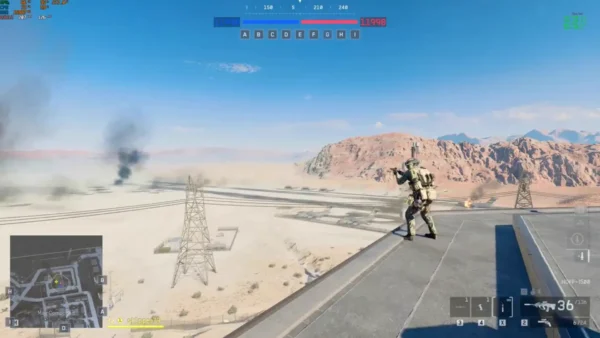
- All the HUD Options – There are tons of them, which I honestly recommend keeping on. The one option I do suggest modifying, if it’s not set by default, is the Minimap size. Make sure this is at 100 so you can see the map better in-game.
- Icons & Indicators – Most can be left on default, but I do recommend modifying any of the “Zoomed” options and lowering them from their default. The reason is that while objective icons are important, they typically aren’t when you aim down sights when you are trying to target an enemy. Smaller icons while aiming down sights mean better visibility when targeting someone, especially if they run past an objective marker.
- Crosshair – Modify the color, opacity, and intensity to your liking. Recommend turning “Infantry Crosshair Projection” off as it will keep the crosshair static and always aligned with the center of the screen.
- Hit Indicator – Recommend setting each type of hit to a different color and ones you’ll remember better. That way, you know what type of hit you got based on the color, rather than the text.
- Chat
- Chat Visibility – Unless you love seeing a big box covering part of the screen with random players typing random stuff, I recommend turning this ‘hide.”
Base Audio Settings (across all platforms)
The default is fine for most people, although there are some settings you may want to adjust.
- Audio Mix – Entirely up to you, but War Tapes, in my opinion, is the best option due to its more aggressive audio.
- Enable Voice Chat – If you don’t want to use the in-game chat, disable this.
- Controller volume – DualSense controller option – I don’t think this is used during multiplayer, but turn it off just in case, turn it back on for campaign.
System Settings
Setup
- Cross-play – If you want to play with PC players, keep this on. Otherwise, turning this off will put you into a pool of players on the same platform (no console, only cross-play).
Creator
- If you’re a content creator, then play around with these; otherwise, if you don’t stream, you shouldn’t have to touch these.
Network
- Scoreboard Ping – Enabled to view the ping of players with good and bad connections.
- Network Graph
- You can turn this on to find out if you are having any network issues in-game. Damage log, event graphs, and performance bars will appear on the screen, giving you a better understanding of what’s going on with your connection to the game.
- Everything else can be enabled or modified as you like.
Battlefield 6 Best Graphical Settings for PlayStation 5 | PlayStation 5 Pro – Fidelity or Performance Mode?
If you haven’t already, refer to the “Base Graphics Settings (across all platforms)” section above, as that is the same recommendation I have across every platform. This section is specifically focused on the quality and performance mode options available on consoles.
Modes
- PlayStation 5 Fidelity Mode: Maximum resolution of 1440p and targets 60FPS
- PlayStation 5 Performance Mode: Maximum resolution of 1280p and targets 80+FPS
- PlayStation 5 Pro Fidelity Mode: Maximum resolution of 2160p and targets 60FPS
- PlayStation 5 Pro Performance Mode: Maximum resolution of 1620p and targets 80+FPS
So for PlayStation 5 players, we have the complete set of graphical modes available on every version of the console. Though if you are playing on the PS5 Pro, you do get “native” 4K resolution at 60FPS, where the base PS5 is 1440p.
The question is, which mode is good? Well, I usually opt for performance mode, but since fidelity is 60fps, rather than 30fps like in many other games, I think we should stick with fidelity mode on both the base and Pro model consoles, unless you have a VRR-supported (HDMI 2.1) TV or monitor to use. But even with the smoothness of VRR, the hit on resolution could worsen your visibility. So in this case, I would still recommend sticking with the fidelity mode, especially since performance mode isn’t going to be a locked 120fps. If you don’t have a VRR-supported set, you’re likely going to have screen-tearing and noticeable dips in performance mode.
The higher performance mode can provide reduced input lag with VRR enabled, making the experience feel more responsive. The PS5 Pro will likely benefit more, as it should be able to achieve higher FPS than the base model.
But because the game runs at 60fps across the board, I’m going to recommend fidelity mode here.
Battlefield 6 Best Graphical Settings for Xbox Series X|S Fidelity or Performance Mode?
If you haven’t already, refer to the “Base Graphics Settings (across all platforms)” section above, as that is the same recommendation I have across every platform. This section is specifically focused on the quality and performance mode options available on consoles.
Modes:
- Xbox Series S: Maximum resolution of 1080p and targets 60FPS
- Xbox Series X Fidelity Mode: Maximum resolution of 1440p and targets 60FPS
- Xbox Series X Performance Mode: Maximum resolution of 1280p and targets 80+FPS
Let’s start with Xbox Series S players. Those who own the console will be stuck with playing in a single default mode, as there is no performance or quality mode to choose from. The good news is that the mode is fairly compromised, in that you’re getting 1080p resolution running at 60FPS. It may not be native 4K, but the only console that is “achieving” that anyway is the PS5 Pro, with the other platforms capping out at 1440p (which is also a good resolution). So, Xbox Series S players, you don’t have a say in which mode you get to play on.
For Series X players, we also recommend keeping it on fidelity mode like the PS5 version. Unless you have a VRR-supported TV or monitor to take advantage of the smoother framerate, you may find the experience to be filled with screentearing and inconsistent frames.
Battlefield 6 Best PC Settings

Upon starting Battlefield 6, the game will automatically determine the best graphical settings for you based on your hardware. It does a solid job overall, but keep in mind that doesn’t mean your system can’t do more than what it’s set to automatically. But if you’re new to PC gaming, the automatic settings are a good baseline to start with.
Now, for a more detailed tuning of things, I am still testing various options, and across multiple builds to find the most “ideal” settings for each config, so this portion of the guide is still a work-in-progress, and will be updated as I test more configurations.
Going to start out by including the baseline graphical settings that all platforms should change:
- Brightness – Adjust this to your preferred level and according to your own setup, as everyone will be different.
- Sharpness – We kept this at default.
- Field of View – We recommend a field of view between 90 and 110 degrees. Anything more than that and your view begins to distort, and anything lower and you’re limiting your own view.
- Vehicle 3rd Person Field of View – Since it’s a third-person view and doesn’t have a gun in the middle of the screen, we recommend cranking this all the way up so you can see everything around you while in a vehicle.
- Weapon Field of View – Wide – This will make the weapon on screen smaller when not zoomed in, thus giving you more viewable space while playing.
- World Motion Blur – 0, the game runs at a rock-solid 60fps, and in my opinion, motion blur is not needed to hide performance issues. That, and you don’t want to limit your visibility by blurring it.
- Weapon Motion Blur – 0, and the same reason as World Motion Blur.
- Camera Shake Amount – Slide this all the way down. You want to make sure that the camera is as stable and nondistracting as possible.
- Chromatic Aberration – Off, unless you like color fringing where outlines of red, blue, and green appear around objects. This is honestly distracting and hurts visibility.
- Vignette – Off, you don’t need the edge of the screen to darken; that’s a loss in visibility, which you are not trying to have.
- Film Grain – Off. I will say that if you are playing single-player, then this option might not be that bad to have on, but in my opinion, having a grainy screen versus a clear, sharp image is not worth the trade-off.
- All the HUD Options – There are tons of them, which I honestly recommend keeping on. The one option I do suggest modifying, if it’s not set by default, is the Minimap size. Make sure this is at 100 so you can see the map better in-game.
- Icons & Indicators – Most can be left on default, but I do recommend modifying any of the “Zoomed” options and lowering them from their default. The reason is that while objective icons are important, they typically aren’t when you aim down sights when you are trying to target an enemy. Smaller icons while aiming down sights mean better visibility when targeting someone, especially if they run past an objective marker.
- Crosshair – Modify the color, opacity, and intensity to your liking. Recommend turning “Infantry Crosshair Projection” off as it will keep the crosshair static and always aligned with the center of the screen.
- Hit Indicator – Recommend setting each type of hit to a different color and ones you’ll remember better. That way, you know what type of hit you got based on the color, rather than the text.
- Chat
- Chat Visibility – Unless you love seeing a big box covering part of the screen with random players typing random stuff, I recommend turning this ‘hide.”
Now for some new settings:
PC Players Using a DualSense Controller
If you’re using a DualSense controller on PC, you’ve likely noticed that the adaptive triggers and haptics are active. The odd thing is, Battlefield 6 doesn’t have any options to turn these off. There’s no easy way to turn them off either, because you might want to use them during the campaign, but not so much in multiplayer, and the only options are to use external programs that spoof the controller into another one, like making your PC think you’re using an Xbox controller instead of a DualSense. Steam has some ways to deactivate rumble in its controller settings, as well as change the input type. That’s relaly all you can do for now until they patch in more settings to adjust these features.
Battlefield 6 Graphical Settings – RTX 4090 GPU, AMD 9800X3D CPU
Like I said, I’ll add more configurations as my testing goes on, though obviously I can’t do every kind of setup out there. I’ll try to get settings for PC setups that range from low, middle, and high. So, I am going to start with my settings that I am using, that is giving me a pretty smooth experience. FYI, I do not use framegen, but if you want the extra frames, go for it. My monitor only reads up to 144 fps, so I can’t really see a reason to go beyond that.
So here’s what I have for my graphical settings:
- Graphic Quality – Custom
- Texture Quality – Overkill
- Texture Filtering – Overkill
- Mesh Quality – Overkill
- Terrain – High
- Undergrowth Quality – High
- Effects Quality – High
- Volumetric Quality – Ultra
- Lighting Quality – High
- Local Light and Shadow Quality – Overkill
- Sun Shadow Quality – Overkill
- Shadow Filtering – PCSSReflection Quality – High
- Screen Space Reflection – High
- Post Process Quality – Ultra
- Screen Space AO & GI – SSGI High
- High Fidelity Objects Amount – Ultra
Display
- Fullscreen
- Fullscreen Resolution – You can target either 1440p or 4K, or whatever resolution your monitor supports. I found the game runs perfectly smoothly, even at 4K with this hardware.
- Refresh Rate – Choose base don your monitor, for me that was 144HZ
- Verticle Synce – On if you aren’t using frame generation, otherwise it gets turned off automatically if you are.
Advanced Settings
- Fixed Resolution – 100
- Frame Rate Limiter – On
- Frame Rate Limit – 120-144
- Nvidia Reflex Low Latency – Enabled
- Upscaling Technique – DLSS (use FSR on AMD)
- Upscaling Quality – Performance
So far, I’ve played for several hours, and everything has been running smoothly with these settings. The game seems very optimized overall. I have heard that even players who don’t meet the minimum specs can achieve impressive performance by adjusting the graphics to lower settings.
My system also consumes about 8GB of VRAM, out of its 24GB total.
For more on Battlefield 6, make sure to bookmark our game hub, which is flooded with news that gets updated daily. Check out the Season 1 content incoming later this month to get an idea what’s in store.
This website contains affiliate links. If you click a link and make a purchase, we may earn a commission at no additional cost to you. This helps support our work. Learn more on our affiliate page.