Marvel Tokon: Fighting Souls Update 1.003 Adds New Wolverine Outfit
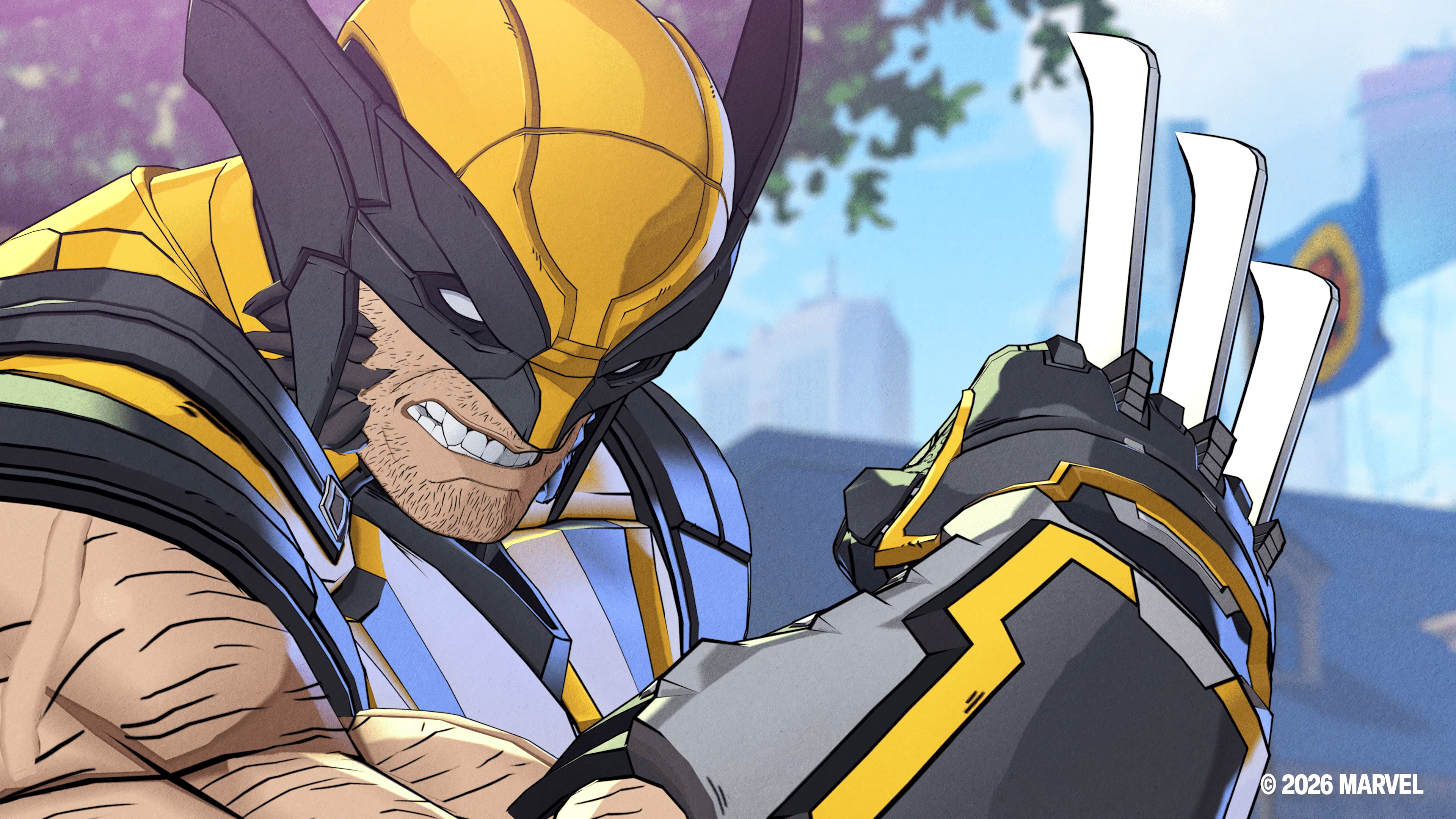
Arc System Works has rolled out Marvel Tokon: Fighting Souls update 1.003 on PS5 and PC, and this adds the Battle Reborn Wolverine suit.
Alongside that, there are also gameplay fixes targeted for PC and PS5, with the complete info available below in the official patch notes.
Marvel Tokon Fighting Souls New Update on August 28 Adds New Wolverine Suit via Patch 1.003
Newly Added Content
Wolverine – Battle Reborn Suit
-Added Wolverine’s new Battle Reborn suit.
-The costume is available for both the battle character and online lobby avatar, including Colors 1–8 for both.
PC Fixes
General System
-Addressed an issue where Windows Update KB5121003 could cause the game to crash.
-Fixed an issue where Steam platform update processes were being called excessively.
PS5 Fixes
General System
-Fixed an issue where the game could repeatedly loop after selecting the language settings when attempting to play before the game had finished downloading in the background.

PS5 & PC
General
-Fixed an issue where the game could occasionally crash when transitioning into battle in Startup Battle, Battle Guide, and Character Lessons.
Gameplay
-Fixed an issue where, under certain circumstances, hitting multiple characters simultaneously with Peni Parker’s grounded Link Attack could cause the opponent to become unable to move.
Arcadia Rumble
-Made adjustments to the network processing in Arcadia Rumble multiplayer to improve stability.
-Fixed an issue where a CPU character that replaced a player who disconnected during battle could become unresponsive.
Replay
-Fixed an issue where character poses would not display correctly on the battle result screen when viewing replays.
-Fixed minor issues that could occur when editing replay notes, including the protection status not updating correctly and the cursor position changing unexpectedly.
Badges
-Fixed an issue where progress for the “Participate in Arcadia Rumble” badge could fail to save correctly.
Open Lobby
-Improved the stability of the network compatibility icon displayed in Lobby Select.
Online Matches
-Added Match Area to Match Settings for Ranked and Casual Matches, allowing you to adjust the area used when searching for opponents.
Your Play Area can be set under Battle Settings. From the Ranked or Casual Match menu, press R1 to open Battle Settings and change your Play Area.
If you’re having trouble finding a match with your current Play Area setting, changing your Play Area to another region may help.
-Fixed an issue where the network compatibility icon would not update correctly on the Match Area selection screen.
Alongside the fixes, Arc System Works has also acknowledged a few known issues too.
Matchmaking Settings
We are aware of an issue where incorrect help text is displayed for the Connection Speed setting when Match Area is set to “All.”
When Match Area is set to “All” while a Connection Speed limit is applied, matchmaking may take longer. If setting Match Area to “All,” we recommend also setting Connection Speed to “All.”
We apologize for any confusion caused by the incorrect information.
This website contains affiliate links. If you click a link and make a purchase, we may earn a commission at no additional cost to you. This helps support our work. Learn more on our affiliate page.