Battlefield 6 Best Console Settings for Controller, Graphics and System Options
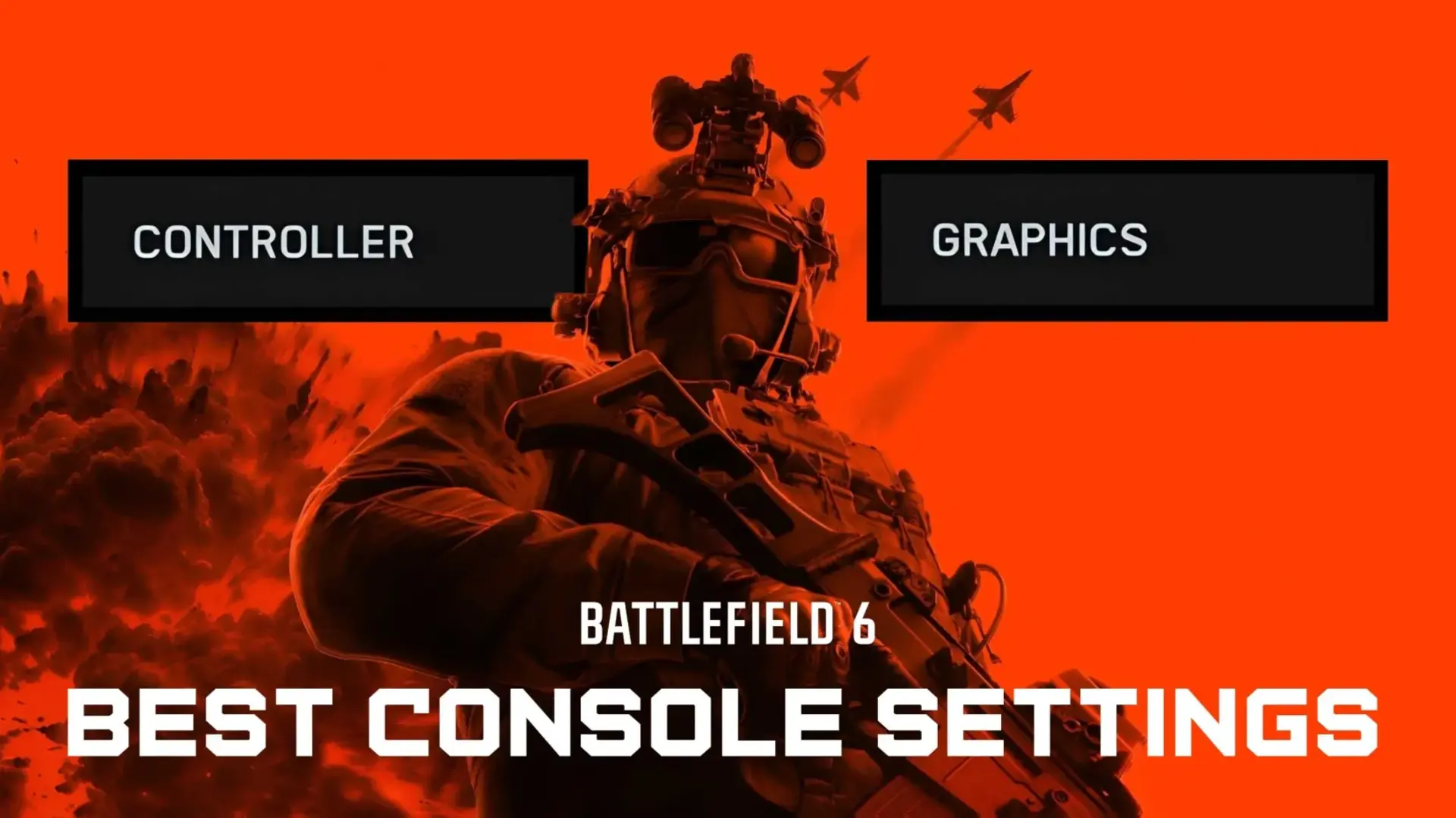
The Battlefield 6 open beta is now out in early access, and if you’re playing on consoles, you might be surprised at how many settings you can change in the game — especially if you came from another shooter franchise.
To help you with that, MP1st has outlined the best console settings for Battlefield 6! This applies to the controller, graphics, audio, and more.
Do note that most of these are preference-based, so you might want to experiment a bit if you find our recommendation isn’t suited to your tastes.
Battlefield 6 Best Console General Settings

Accessibility:
Graphics
Color Presets – Custom
As someone who’s colorblind (very, very severe), it helps to customize the colors for your team, squad and enemy. Personally, I choose Red for the enemy, Yellow for my squad, and Blue for teammates. If the default one works for you, then no need to change.
Camera Effects – Modify.
Turn off or dial down everything in the camera settings
- World Motion Blur – 0
- Weapon Motion Blur – 0
- Soldier HUD Motion – Off
- Camera Shake Amount – 0 or leave it at 10-20 if you still want it to feel immersive somewhat
- Chromatic Aberration – Off
- Infantry Crosshair Projection – Off
Graphics
Visuals
Performance Preset – Performance (higher framerate, the better)
Camera Settings
- Field of View (FOV) – I move it to 90 or 100, and some want it even higher, but I find 100 to be the sweet spot.
- Weapon Field of View – Wide
Interface and HUD
Leave everything as default except:
- Soldier HUD Motion – Off
- Vehicle HUD Motion – Off
System
Minimap
- Close Minimap View Distance – 60
Network
- Scoreboard Ping – On
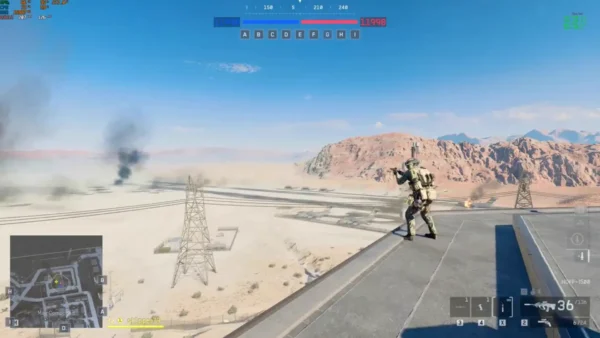
- Show Network Performance Bar – Always (so you know if you’re experiencing lag spikes, etc.).

Battlefield 6 Best Controller Settings

Controller:
Edit Button Mapping
First thing to do is go to the Controller tab, click on “Edit Presets” and continue to “Edit Button Mapping.” You’ll want to move the R1 (grenade) to L1, and vice versa. This means that R1 will now be your “Spot” button and Commorose, which is something you’ll use more often than a grenade. You’ll also find it easier to spot for your entire team, since you can now press spot while keeping your ADS (aim down sight).
Controller > Edit Settings
Next, go to your Controller, and “Edit Settings, which is the button below the Edit Presets.
Infantry Control Settings
Infantry Aim Sensitivity – You’ll want to increase this from the base value (which is 20), to something much higher. I’m personally using 40-50, but if you’re used to twitchy, faster-paced shooters, you might want to have this at 60 or even more. Test it out in the Firing Range to know what Aim Sensitivity suits you best.
- Field of View (FOV) – I move it to 90 or 100, and some want it even higher, but I find 100 to be the sweet spot.
- Uniform Infantry Aiming – On
- Zero Sensitivity Coefficient – 133 (Keep as default or you can increase it a bit especially if you snipe).
- Infantry Aim Assist – 100 (Default)
- Infantry Aim Assist Slowdown – 100 (Default)
- Infantry Aim Assist Zoom Snap – Lower to 50 or even lower if you want your aim assist to snap more to an enemy.
- Soldier Aim Input Curve – Standard
- Soldier Zoom Aim Input Curve – Standard
- Stick Input Acceleration Presets – Standard
- Aiming Left/Right Acceleration – 60

Movement
For the most part, you want to keep this to default. If you prefer to toggle your sprint or feel like you want more control on your sliding, feel free to change these. The default setting for the movement works best and doesn’t need to be changed, especially if you’re coming from other first-person shooters.
Zoom
- Infantry Weapon Zoom – Hold (If you use Toggle on this, what’s wrong with you?)
- Zoom – L2
- Steady Scope – L3
- Vertical Aim Ratio – 56.3
- Vertical Zoom Ratio – 56.3
Other
Controlling Tuning
Controller Vibration – Off (Your preference, but having it off is less distracting)
Controller Left Stick
- Center Deadzone – 2
- Axial Deadzone – 10
- Max Input Threshold – 80
Controller Right Stick
- Center Deadzone – 2
- Axial Deadzone – 8
- Max Input Threshold – 100
Again, you might want to adjust some of these values, so I suggest hopping into Firing Range or get into a match and test these out. Special thanks to Xclusive Ace for some of the values and what each means. While this guide is out during the beta phase, there’s no reason why these same values and settings won’t carryover to the final version of the game in October.
If you need help booting the beta on PC, check out our guide on enabling Secure Boot for the BF6 beta.
This website contains affiliate links. If you click a link and make a purchase, we may earn a commission at no additional cost to you. This helps support our work. Learn more on our affiliate page.