Everything PC Players Need to Know to Run Battlefield 6
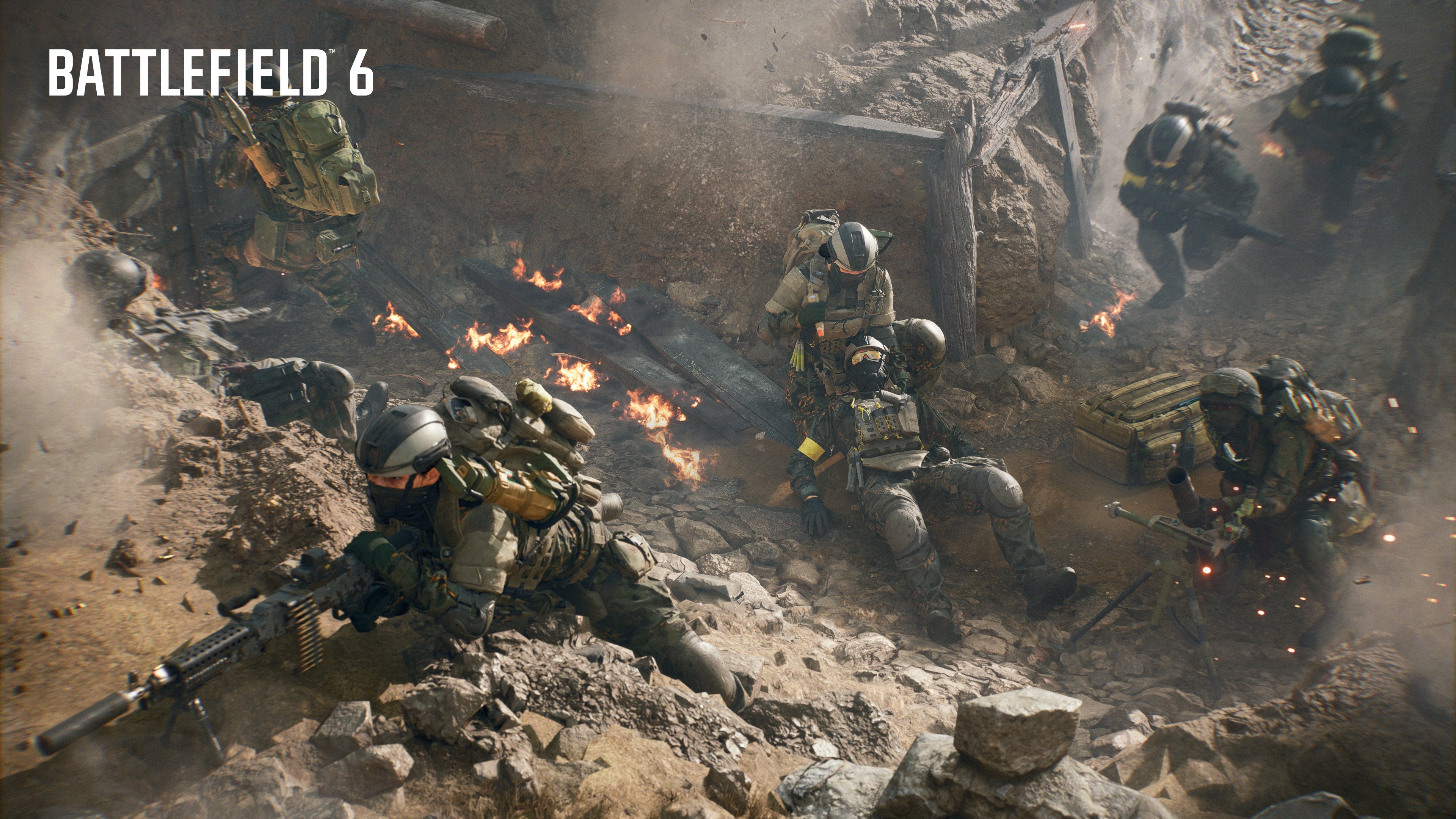
For PC players who want to jump in the Battlefield 6 player pool, you might come across obstacles in order to run the game. From Secure Boot, to other mandatory requirements that have no connection to the power of your rig, there might be a thing or two that trips the game up from running as expected on your PC.
This is where we come in, as we’ve rounded up a quick guide on potential issues players might encounter when booting up Battlefield 6 on PC.

How to Properly Run Battlefield 6 on PC

Battlefield 6 PC Requirements
Minimum Requirements (1080p @ 30 FPS, Low Settings)
- Upscaler: Native
- GPU: NVIDIA GeForce RTX 2060 / AMD Radeon RX 5600 XT / Intel Arc A380
- Video Memory: 6 GB
- CPU: Intel Core i5-8400 / AMD Ryzen 5 2600
- RAM: 16 GB (Dual channel 2133 MHz)
- OS: Windows 10**
- DirectX: DirectX 12
- Storage: 55 GB HDD*
- Security Features: TPM 2.0, UEFI Secure Boot, HVCI, VBS — Required
Recommended Requirements
Balanced (1440p @ 60 FPS, High Settings)
Performance (1080p @ 80 FPS, Low Settings)
- Upscaler: Native
- GPU: NVIDIA GeForce RTX 3060 Ti / AMD Radeon RX 6700 XT / Intel Arc B580
- Video Memory: 8 GB
- CPU: Intel Core i7-10700 / AMD Ryzen 7 3700X
- RAM: 16 GB (Dual channel 3200 MHz)
- OS: Windows 11 64-bit
- DirectX: DirectX 12
- Storage: 90 GB SSD*
- Security Features: Required (same as above)
Ultra Requirements
Balanced (2160p [4K] @ 60 FPS, Ultra Settings)
Performance (1440p @ 144 FPS, High Settings)
- Upscaler: Native
- GPU: NVIDIA GeForce RTX 4080 / AMD Radeon RX 7900 XTX
- Video Memory: 16 GB
- CPU: Intel Core i9-12900K / AMD Ryzen 7 7800X3D
- RAM: 32 GB (Dual channel 4800 MHz)
- OS: Windows 11 64-bit
- DirectX: DirectX 12
- Storage: 90 GB SSD*
- Security Features: Required (same as above)

TPM 2.0, UEFI Secure Boot, HVCI, and VBS Enabled

Because of the nature of PC gaming, not everyone has the same hardware in their builds. This isn’t like console gaming, where every PlayStation or Xbox is the same, even if they have different model versions, such as the PS5 Pro and Series X. Battlefield 6 is going to work on all of these consoles, but the same cannot be said for PC builds.
With Battlefield 6, TPM 2.0, UEFI Secure Boot, HVCI, and VBS are all mandatory. If you played the previous Battlefield 6 beta, you should be good to go. However, if you didn’t, the steps to enable this function vary between motherboard manufacturers. The easiest way to check if you do have it enabled is to do the following:
- Select the Windows Key + R. This will open the Run Window.
- Type msinfo32 and select the Enter Key or OK.
- From the System Information window that opens, select System Summary.
- Scroll down to find these values:
-
BIOS Mode value should be UEFI
-
Secure Boot State value should be On.
-
If Secure Boot State is Off, we’ll need to check the BIOS Mode and then enable it.
-
If Secure Boot State is Unsupported, check with your motherboard manufacturer’s specification sheet or manual to see if Secure Boot is supported.
-
If BIOS Mode is UEFI, then you can move on to how to enable Secure Boot.
-
If BIOS Mode is Legacy, you’ll need to check if your Windows disk is MBR or GPT.
-
Here’s an example of my machine, which has UEFI enabled but the secure boot state turned off.
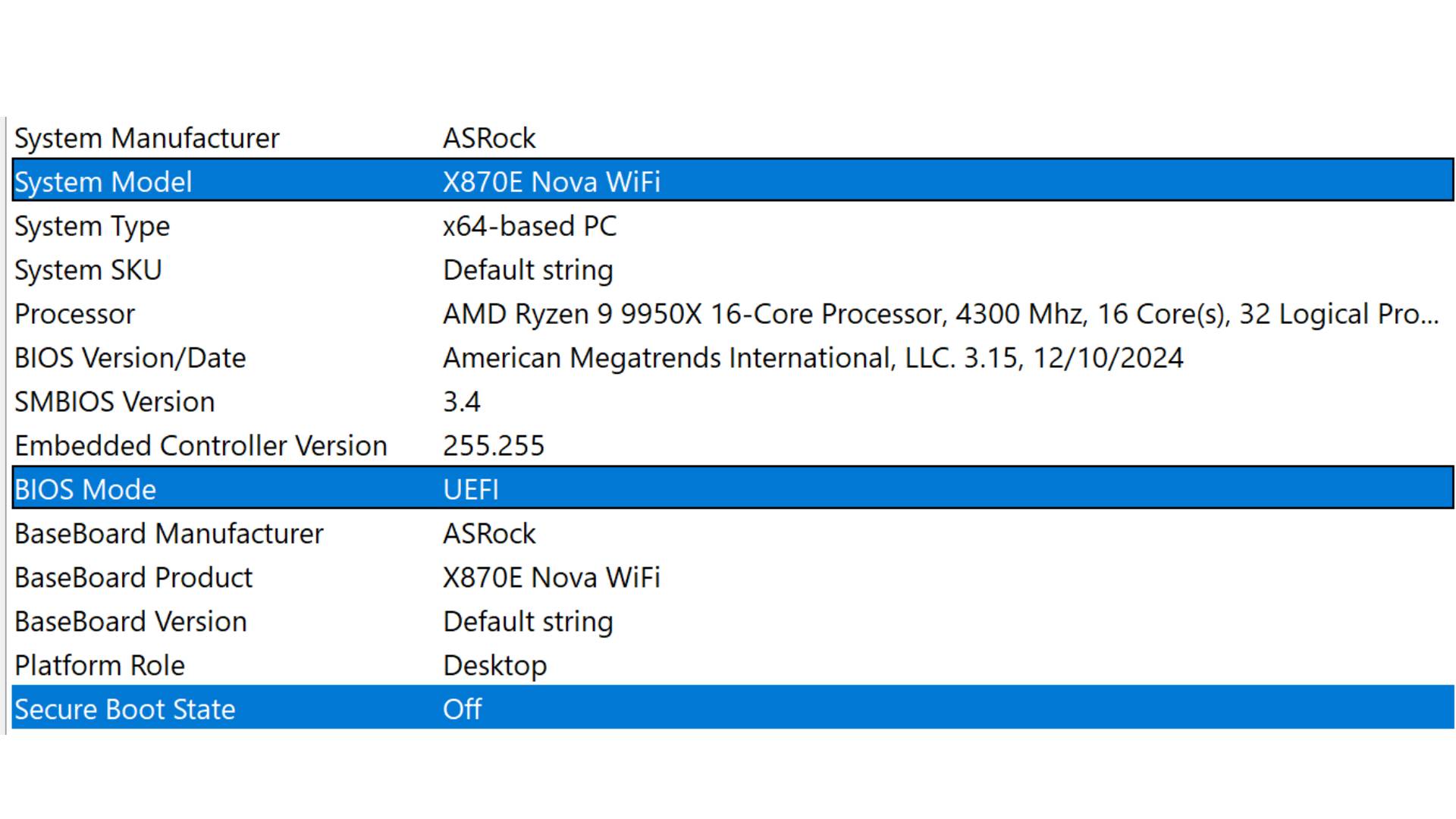
This was a recent build I made, and as you can see, secure boot is currently disabled. Wasn’t by choice, it just came like that.
Here’s another example from my main gaming PC where the feature is enabled.
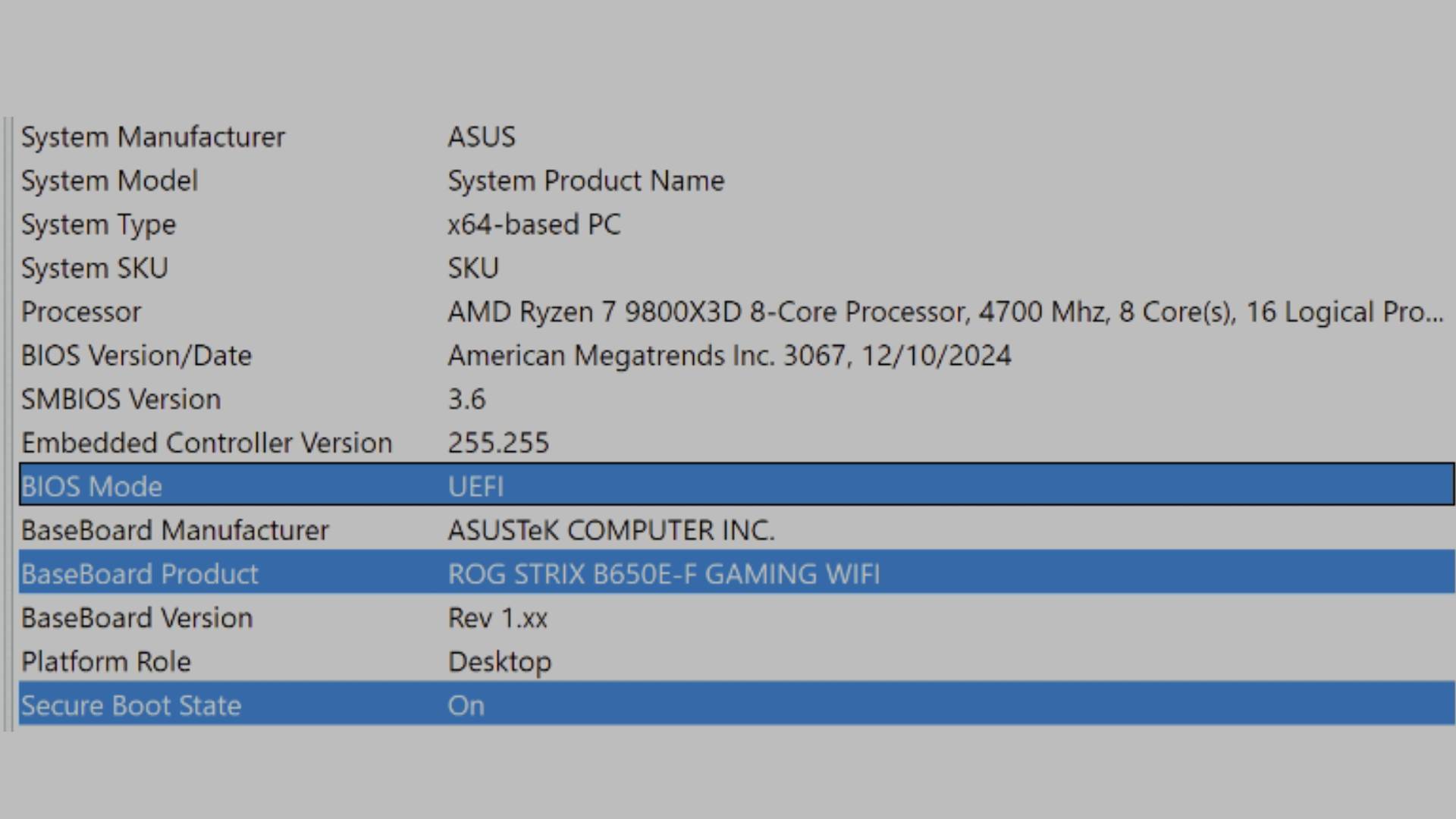
The tricky part comes in with enabling the secure boot state, because it all depends on where your motherboard manufacturer has placed it. I previously wrote a guide on this for the Battlefield 6, although it was for a ROG Strix B650E-F Gaming Wifi motherboard. If you have that board, then refer to that guide. Otherwise, from the previous step, make a note of the “BaseBoard Product” and then Google search “how to enable secure boot on a (insert board name here).”
I’m not kidding when I say it’s different for every manufacturer, because I just went ahead and did it for my Asrock X870E Nova, which involved more steps than my ROG Strix B650E-F Gaming Wifi motherboard. If you have an Asrock X870E Nova motherboard, here are the steps to enable secure boot and TPM 2.0.
Secure Boot
- Reboot PC and hit F2 on the first splash screen (or just mash it) to enter the BIOS
- Navigate to the boot menu tab and make sure the CSM option is disabled
- Navigate to the security menu tab and select secure boot. This will open another menu.
- Select the “Install default secure boot keys” towards the bottom half of the screen.
- Then select the “secure boot” option (upper half) and switch it from disabled to enabled.
- If TPM 2.0 is already enabled, Press F10 to save and exit. If not, refer to the next step.
TPM 2.0
Skip to step 2 if you are still in the BIOS from the previous instruction.
- Enter BIOS/UEFI Setup: As the computer starts, repeatedly press the Del or F2 key to access the BIOS.
- Navigate to Advanced Settings: In the BIOS/UEFI, go to the Advanced tab.
- Find CPU Configuration: Select CPU Configuration from the options.
- Locate AMD fTPM: Find the AMD fTPM switch setting.
- Enable fTPM: Change the setting from “Disabled” to AMD CPU fTPM or simply Enabled.
- Save and Exit: Press F10 to save and exit.
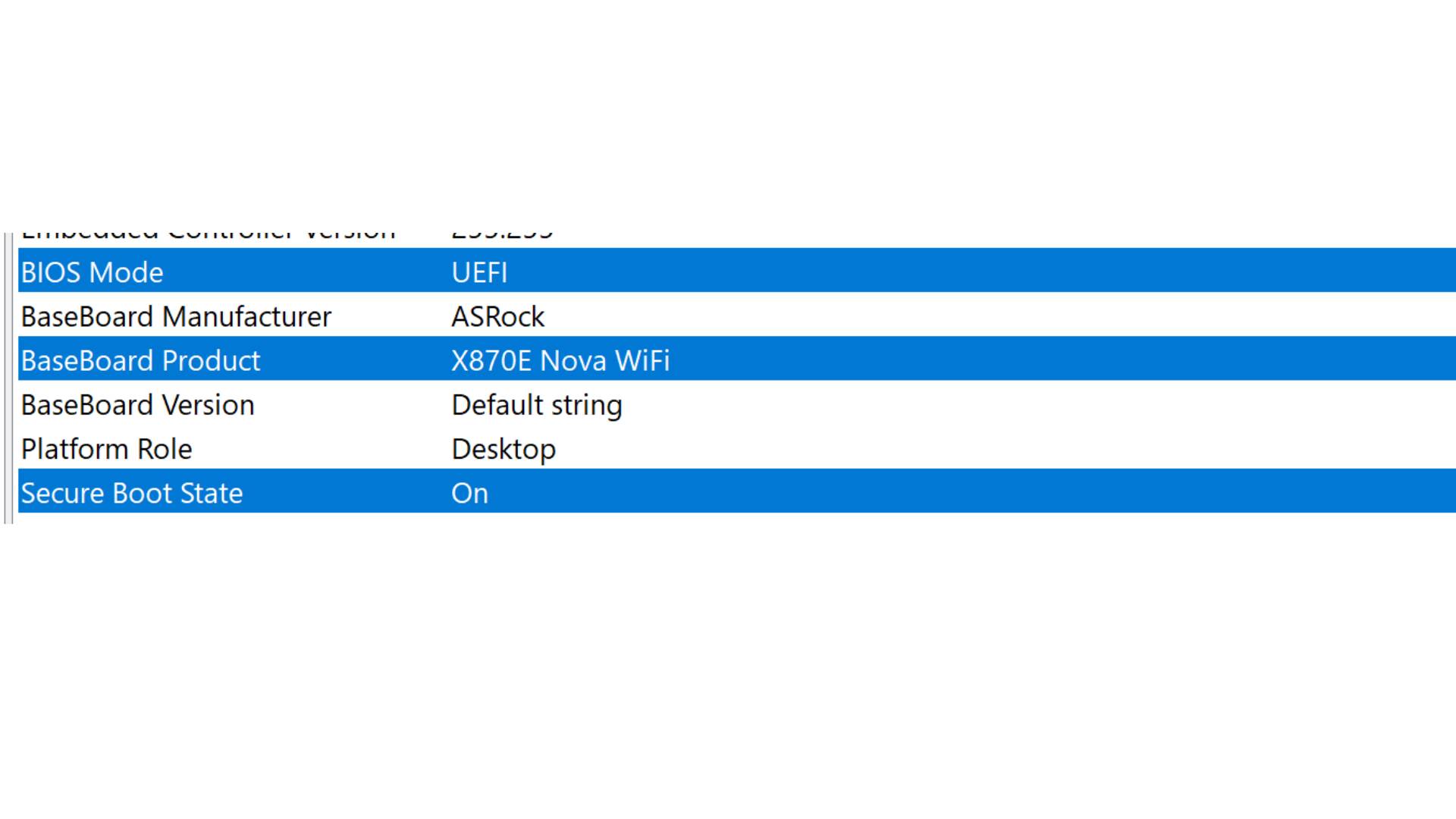
I wish there were a single solution for everyone, but there isn’t. You are going to have to do a little bit of research, but there are guides online, and enabling the function should only take a few minutes, as long as your PC supports it. If it doesn’t, then you’re basically out of luck, as Battlefield 6 will not boot without it.
Enabling VBS will also involve accessing the BIOS if enabling the other two options doesn’t automatically do so. You’ll need to look up a guide on Google for your specific motherboard.
Here’s a video instruction on enabling HVCI. Yes, it’s for Valorant, but the steps are the same across the board (at least they should be), unlike the previous three requirements.
Latest GPU Drivers
In addition to requiring UEFI Secure Boot, HVCI, and VBS Enabled, you also need to make sure your graphics card driver is up to date. I’m not saying that because there’s a new driver; everyone should constantly update to the latest one, as companies often recommend. No, I actually disagree with that because I know how broken graphic drivers can be. Nvidia itself introduced a screen flickering bug in one of its updates, which it didn’t fix for a while after (and some users still experience this issue). So I completely understand why so many of you would be against this.
Sadly, if the final release is anything like the beta requirements, Battlefield 6 won’t let you boot up unless you’re up to date with the latest driver they’re enforcing. There might be a bypass to this, which I’ll add later, but chances are that driver updates will be enforced.
All three major GPU manufacturers (Nvidia, AMD, and Intel) have different methods for updating their drivers, and your PC should already have their native application installed. Open that up, and there should be a notification stating that a new driver update is available, if one is available. I’ve also included links to the driver page for each of the three GPU makers.
- Nvidia
- AMD (Auto Detect Tool)
- Intel (You’ll need to search for your GPU)
A Copy of Battlefield 6
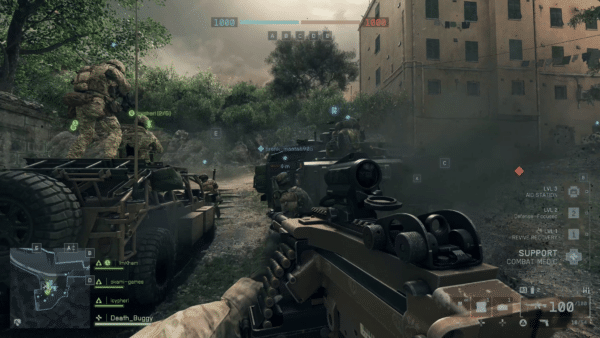
Assuming your PC meets the requirements and has TPM 2.0, UEFI Secure Boot, HVCI, and VBS Enabled, then you should be all set to download and play Battlefield 6. The easiest and most obvious requirement out of all of these, you’re going to need to own a copy of Battlefield 6. Whether you buy from Steam or the EA App, you’ll need to download the game. If this is before launch, preloads are live, and if this is after, once you finish downloading, you can immediately boot the game. It will run some checks to ensure you have TPM 2.0, UEFI Secure Boot, HVCI, and VBS enabled. If any of these features are not enabled, a warning screen will appear, telling you to enable them. It will check for driver requirements after.
If you manage to get the game booted, then congratulations, you are now ready to play Battlefield 6!
Whew, a lot of steps to get the game working, but if this is your first time experiencing TPM 2.0, and the rest of the requirements, then the good news is you should be all set from here on out for any other upcoming games, like Call of Duty Black Ops 7. Just be sure not to run any other game that requires these at the same time, as they’ll conflict with one another, preventing one from starting up.
Speaking of PC, the latest report mentions how Battlefield 6 pre-orders have already hit 1.7 million units on Steam alone, which means expect a ton of players to login come launch day.
For more on Battlefield 6, check out the confirmed content incoming for Season 1

This website contains affiliate links. If you click a link and make a purchase, we may earn a commission at no additional cost to you. This helps support our work. Learn more on our affiliate page.